
Stock adjustments in Sage 200 are not always straightforward. Items can be damaged, lost, given away during promotions, or reclassified for internal use. When these changes are not recorded accurately, stock quantities and reporting quickly become unreliable.
Excelerator simplifies this process by allowing stock adjustments to be made in bulk directly through Excel, removing the need to update items one by one inside Sage 200.
In this blog, we’ll cover how to:
Make stock adjustments using Excelerator’s built-in spreadsheet template
Create and use a custom Excel template for stock adjustments
View a video of this tutorial here:
Making stock adjustments using Excelerator built-in spreadsheet template
Stock adjustments Excelerator comes with built-in templates to add new items, write off damaged ones, and manage internal issues and returns.
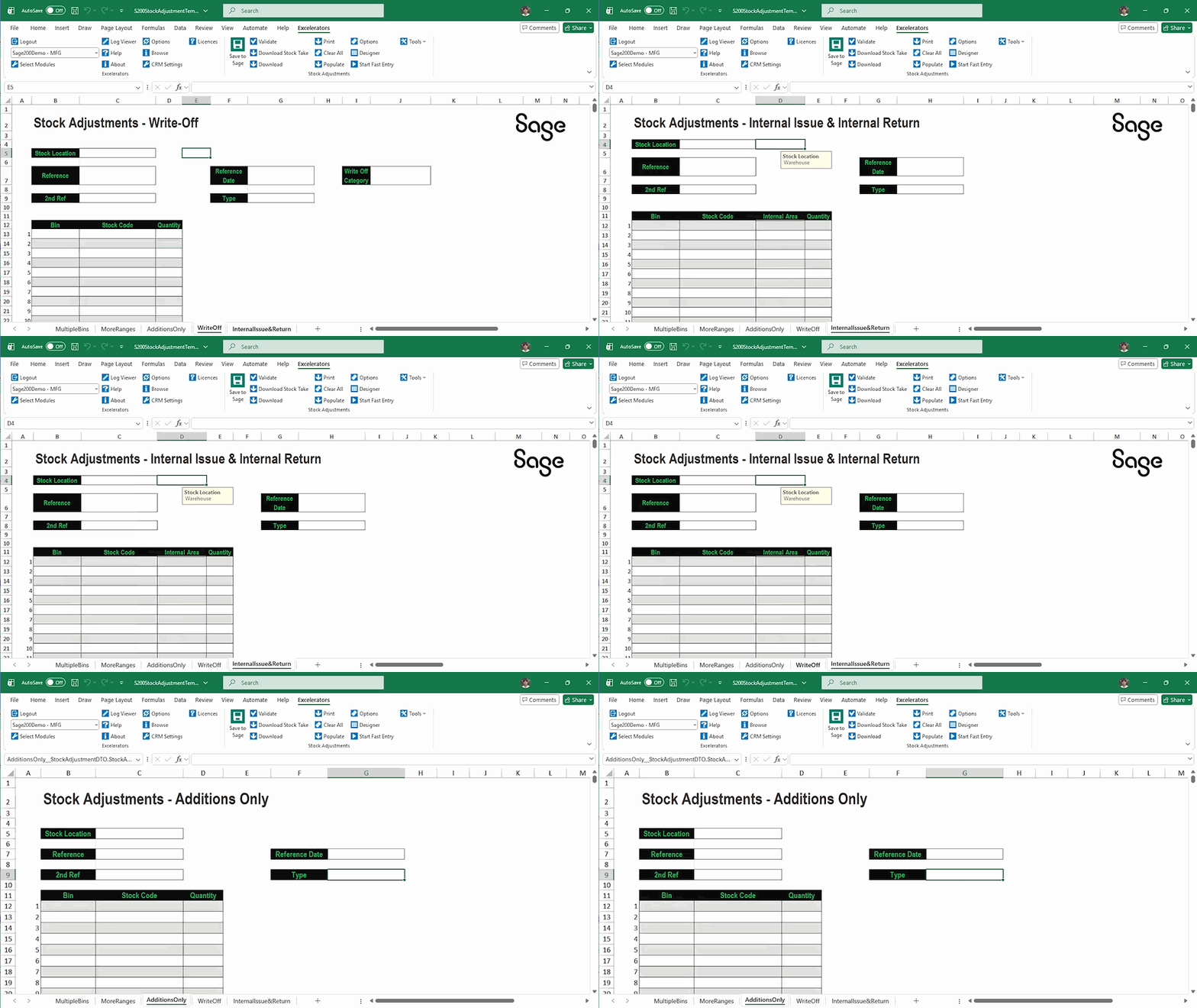
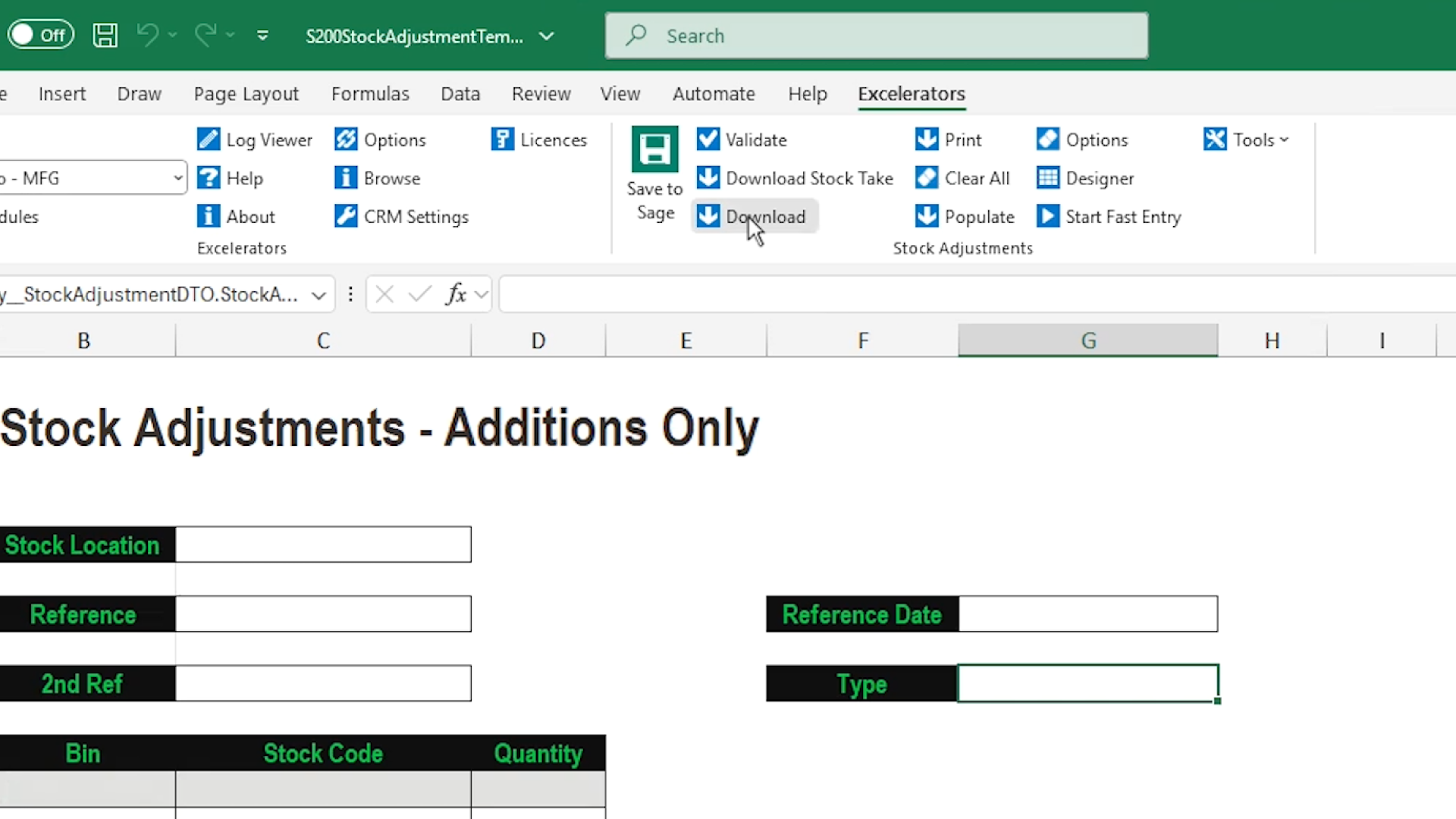
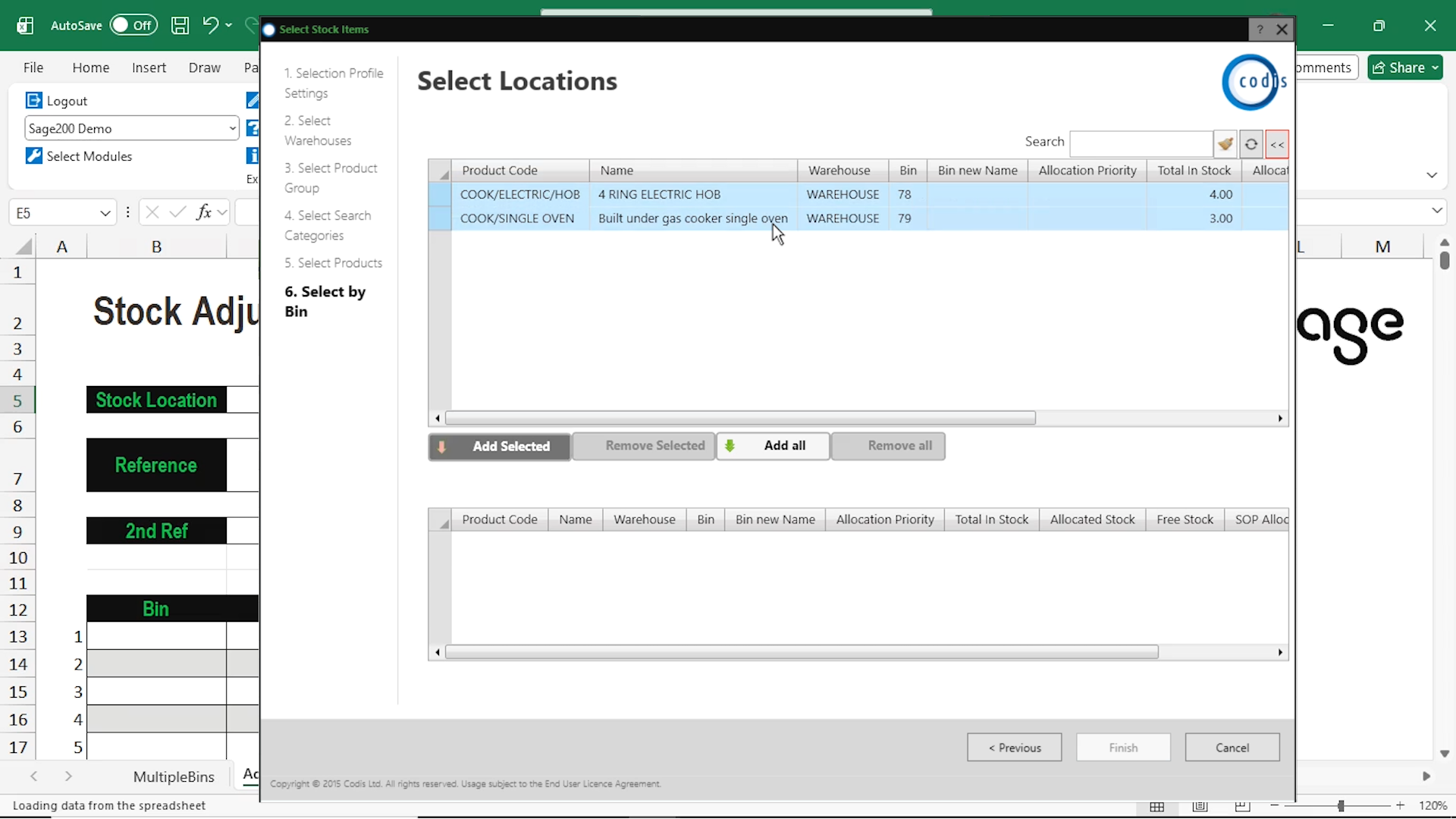
Let’s add some new stock. Click Download to open the wizard.
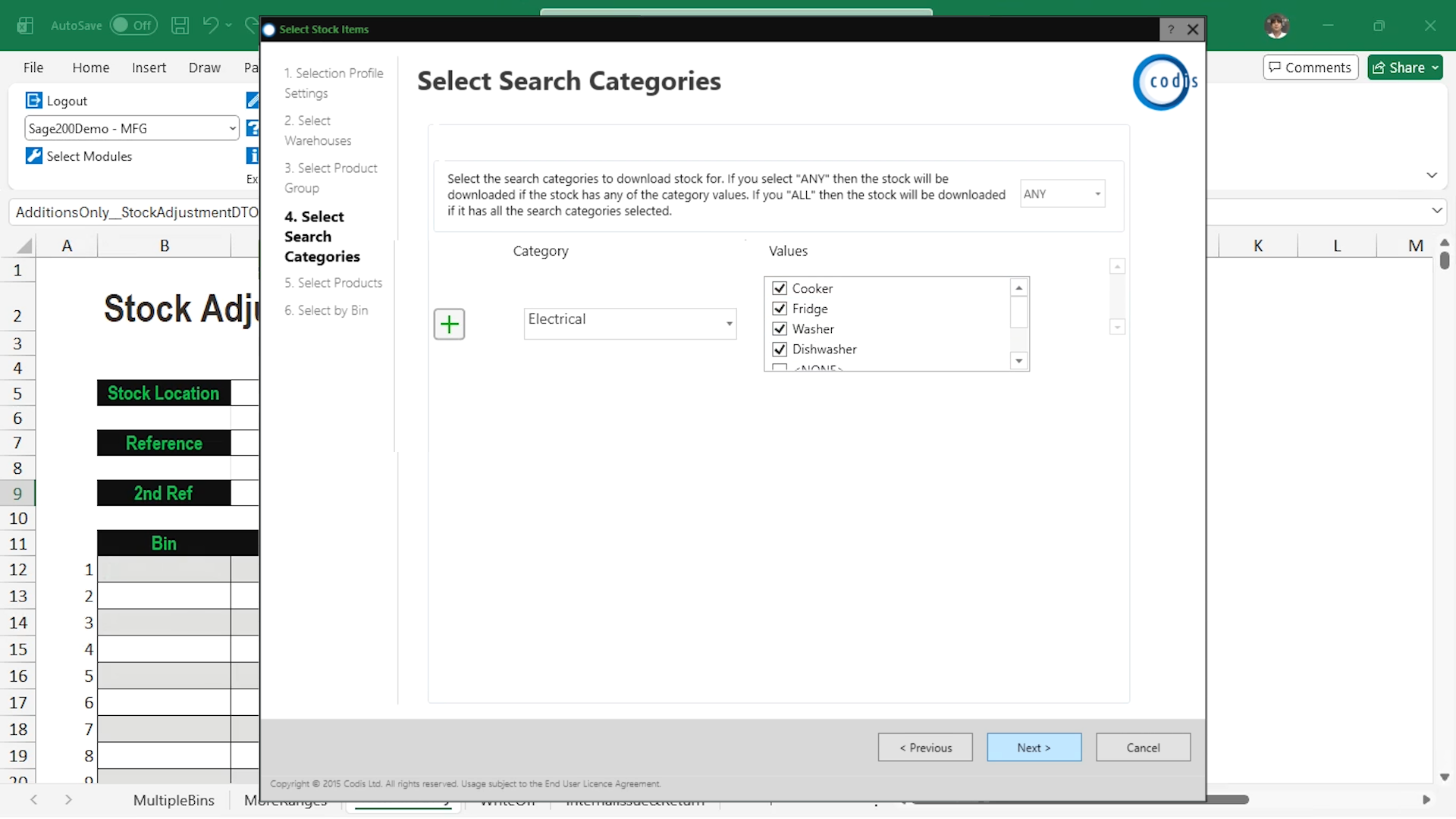
We will select our search categories,
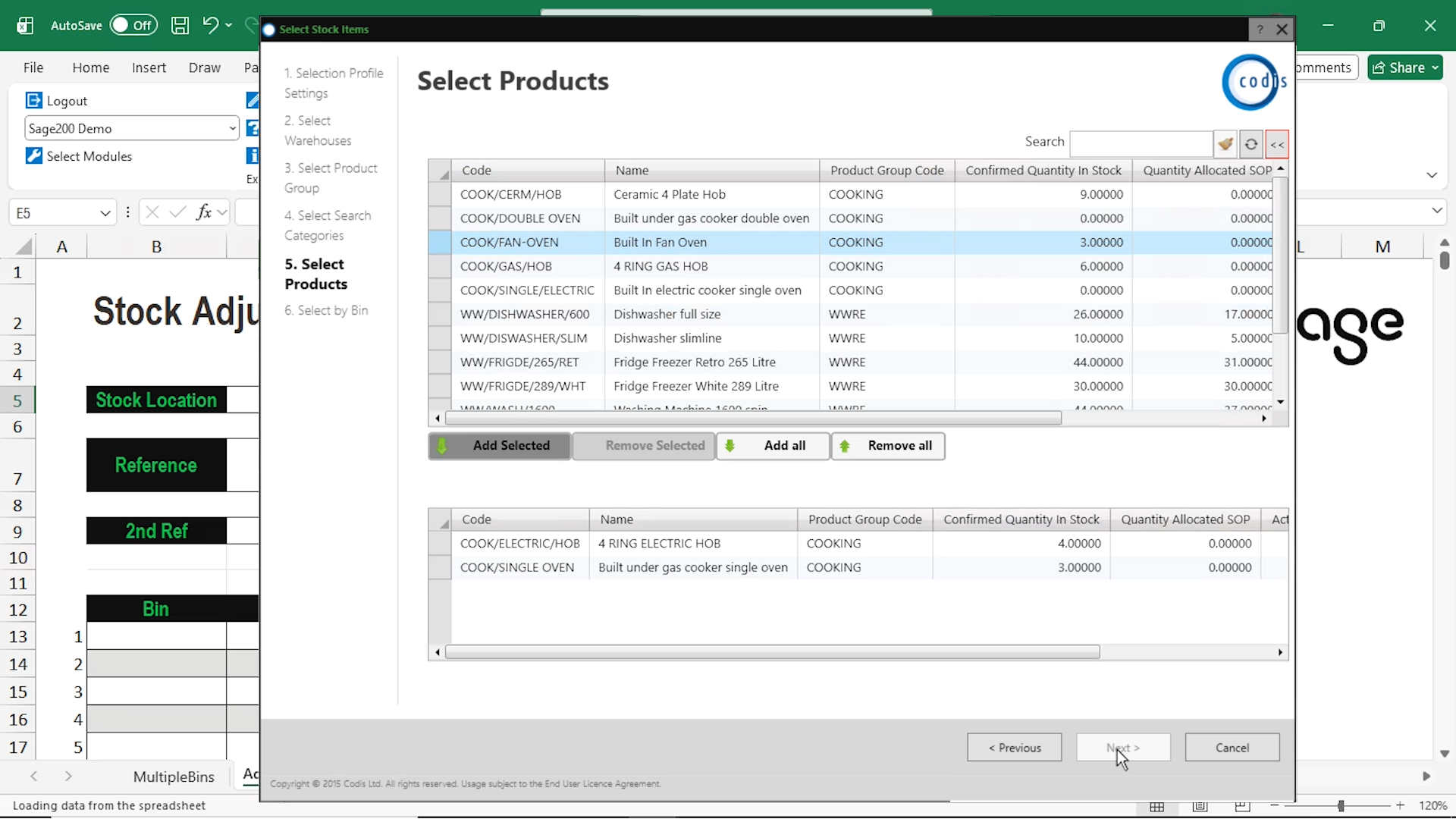
choose from the products that were found
choose the bin locations, and then click Finish.
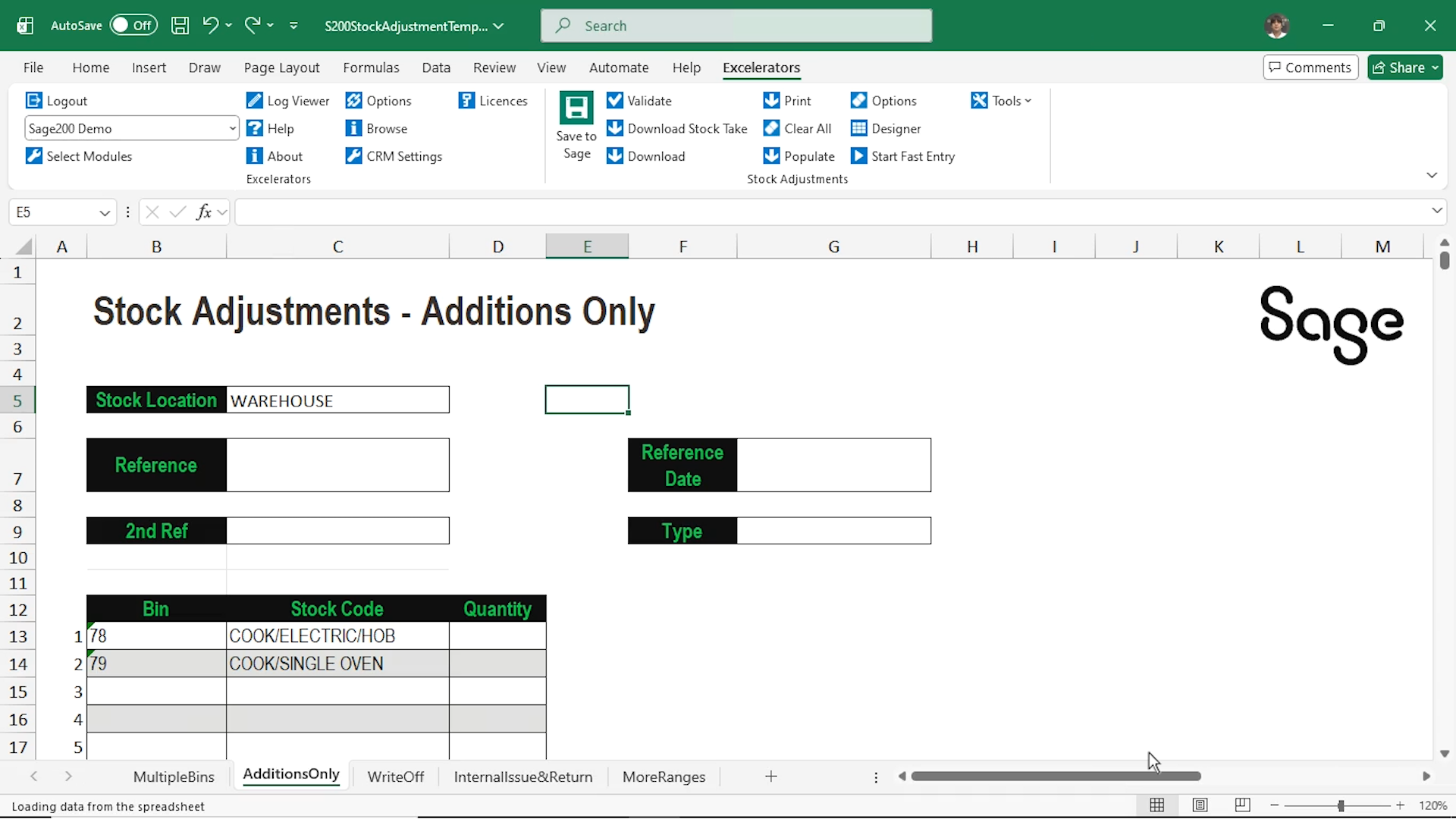
Your stock items have been downloaded to the sheet.
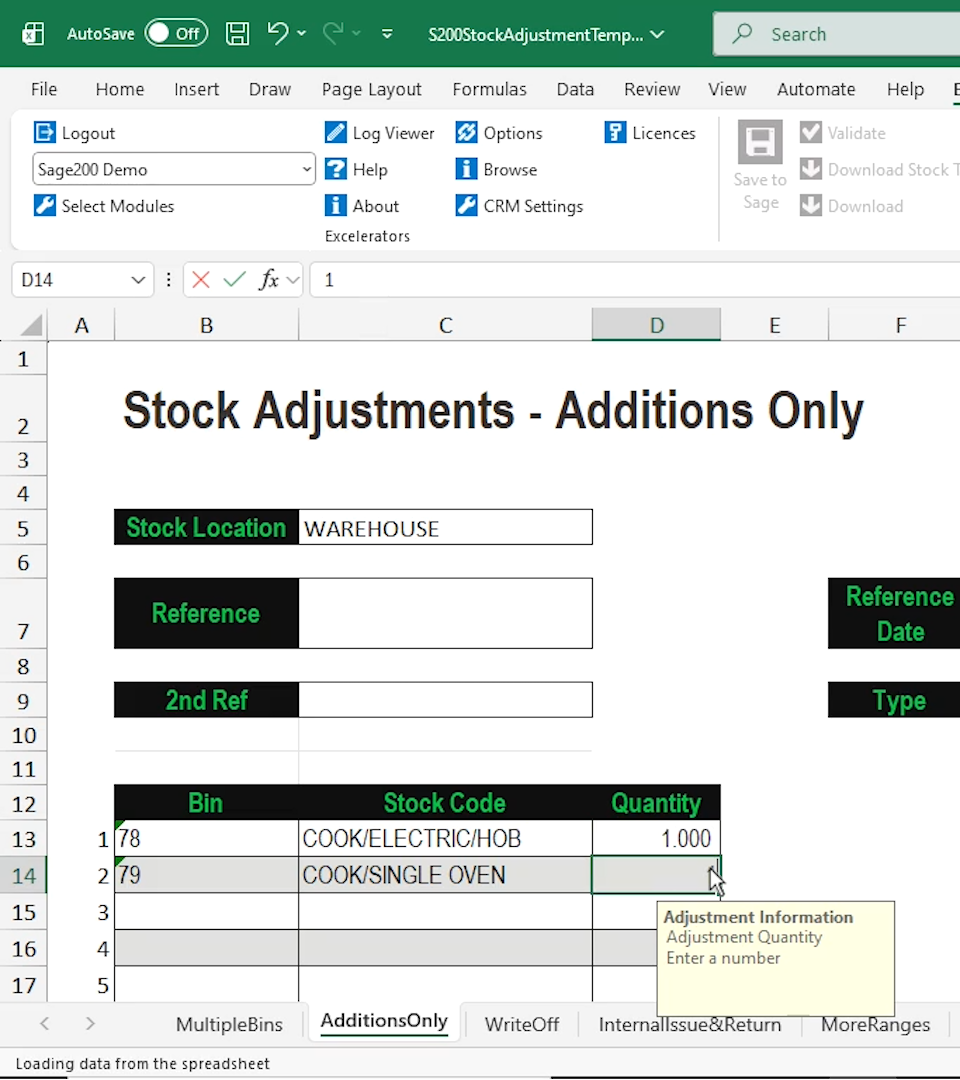
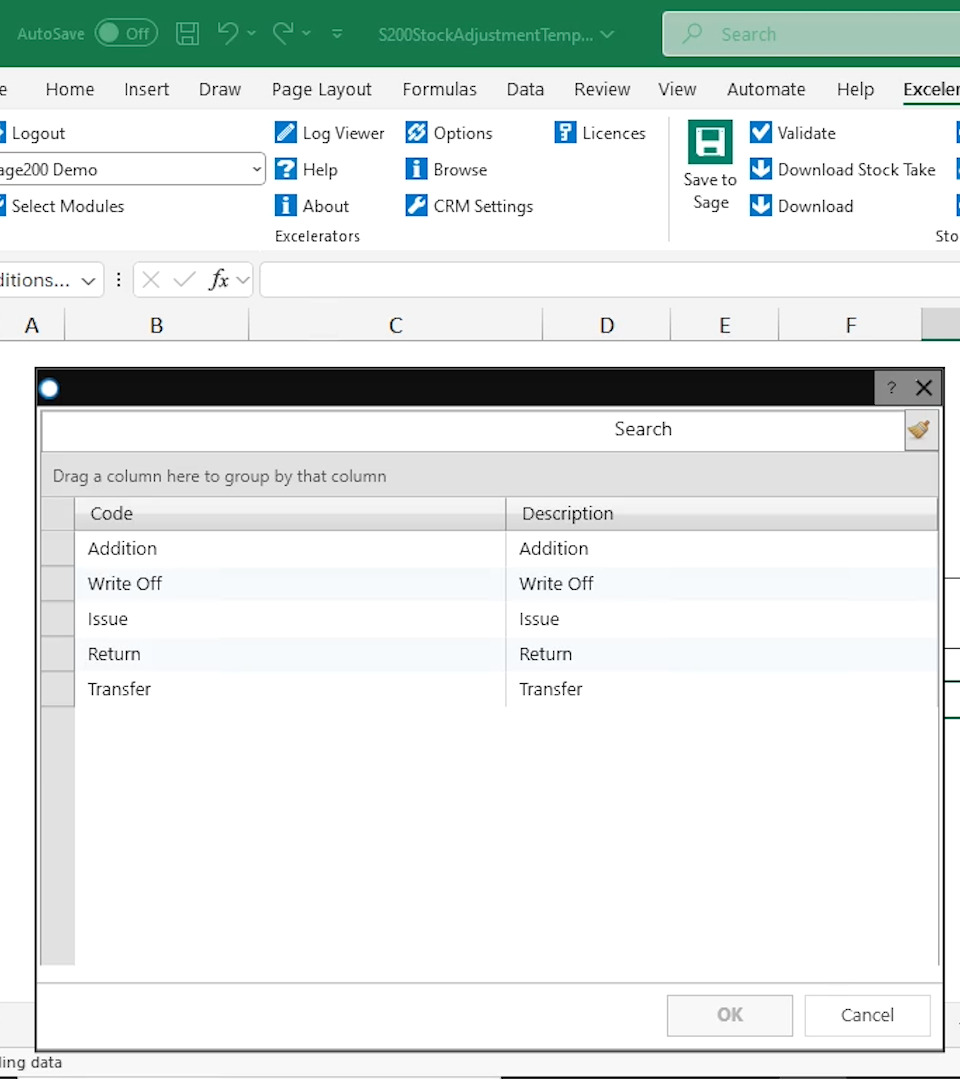
Now update the Quantity column and change the Stock Adjustment Type to Addition.
Click Validate to validate the data and then Save to Sage.
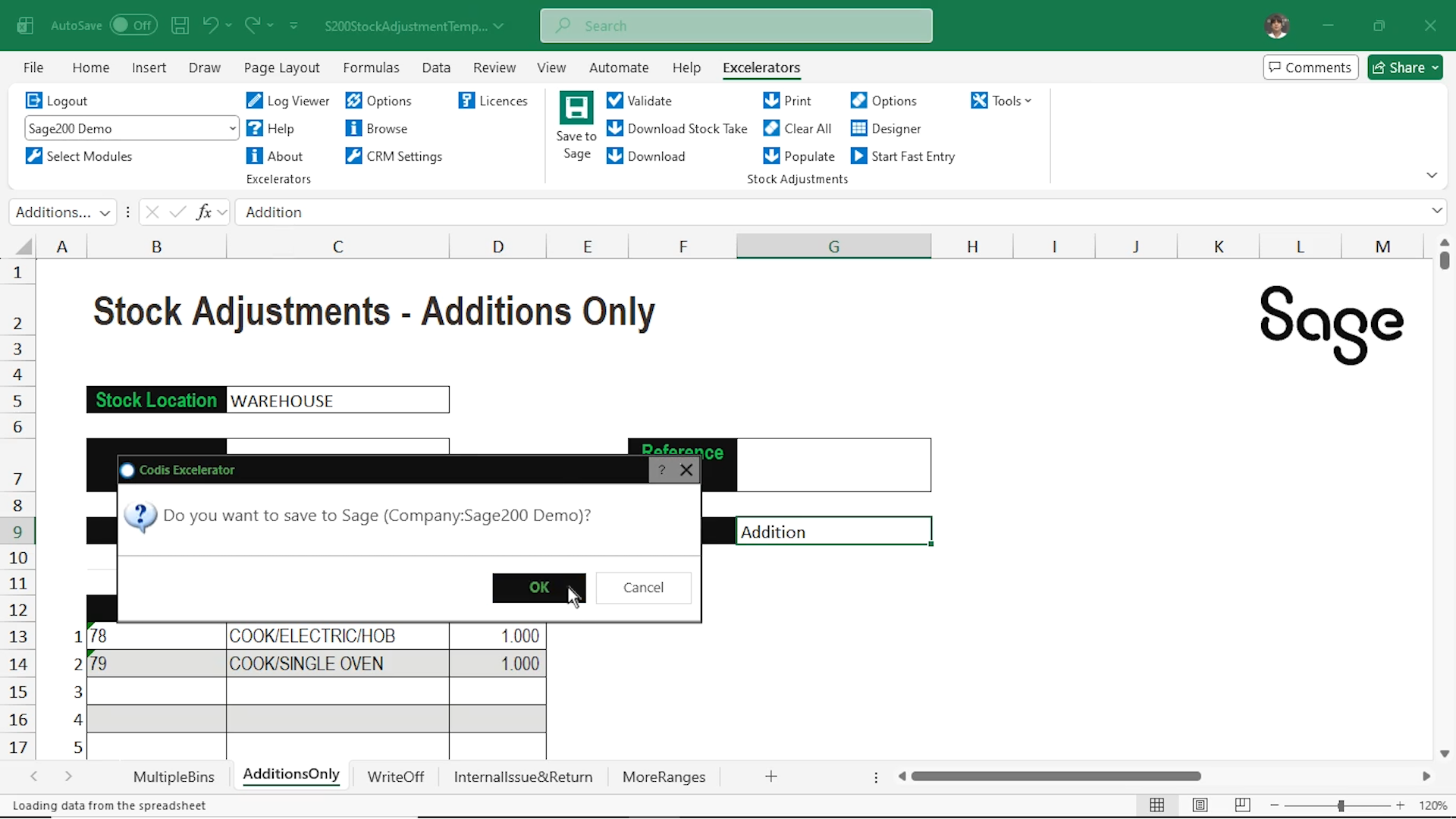
Just like that, the additional stock items have been added to Sage 200 using Excelerator!
Designing your own template for stock adjustments
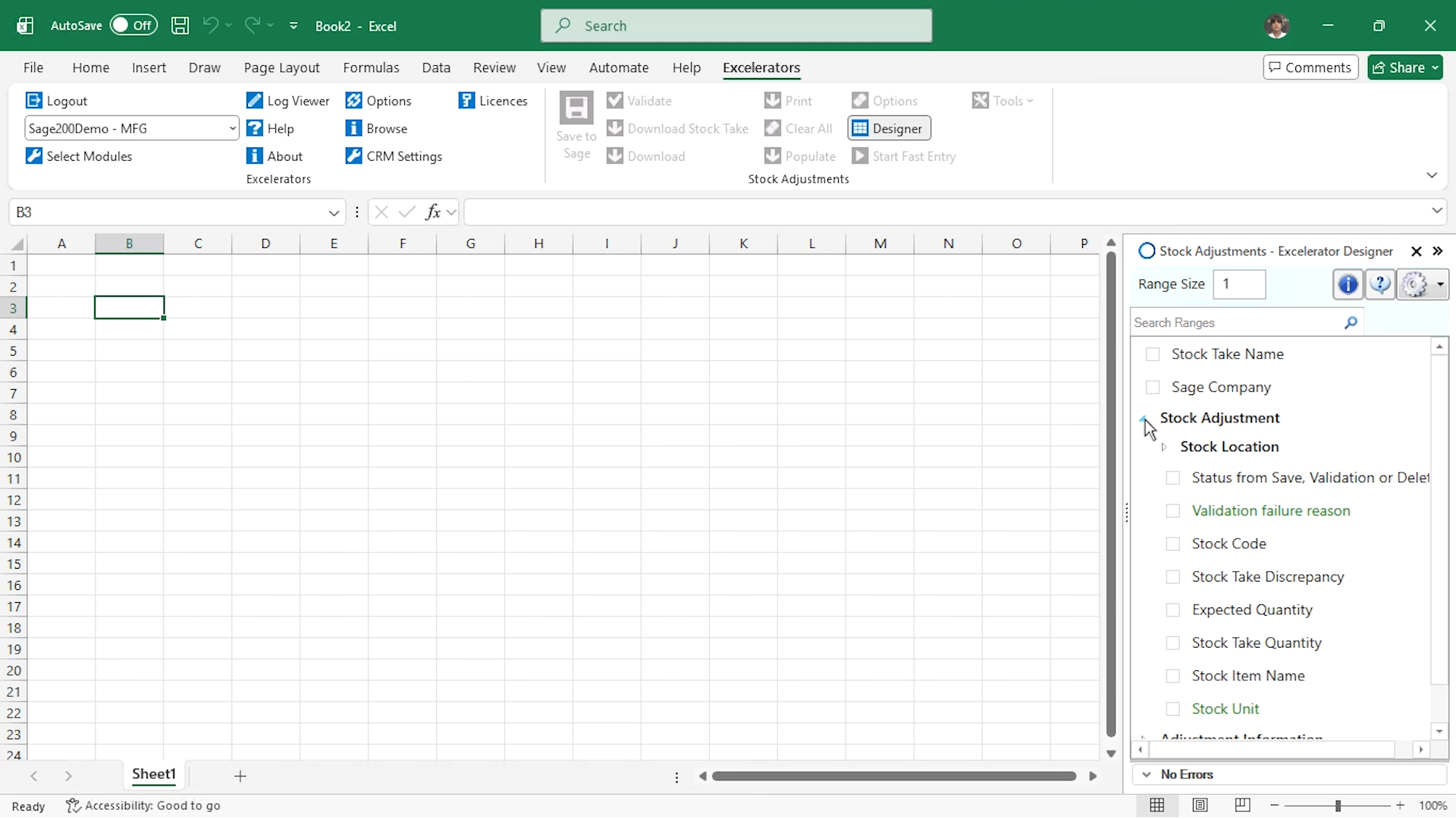
Now let’s build a custom stock adjustment template using the Spreadsheet Designer. Click the Designer button.
All standard Sage fields are available, so you can create the exact layout that works for you
We will add these columns by ticking the corresponding boxes:
Stock Code
Warehouse
Bin
Total in Stock
Quantity
Adjustment Types
Category or Area
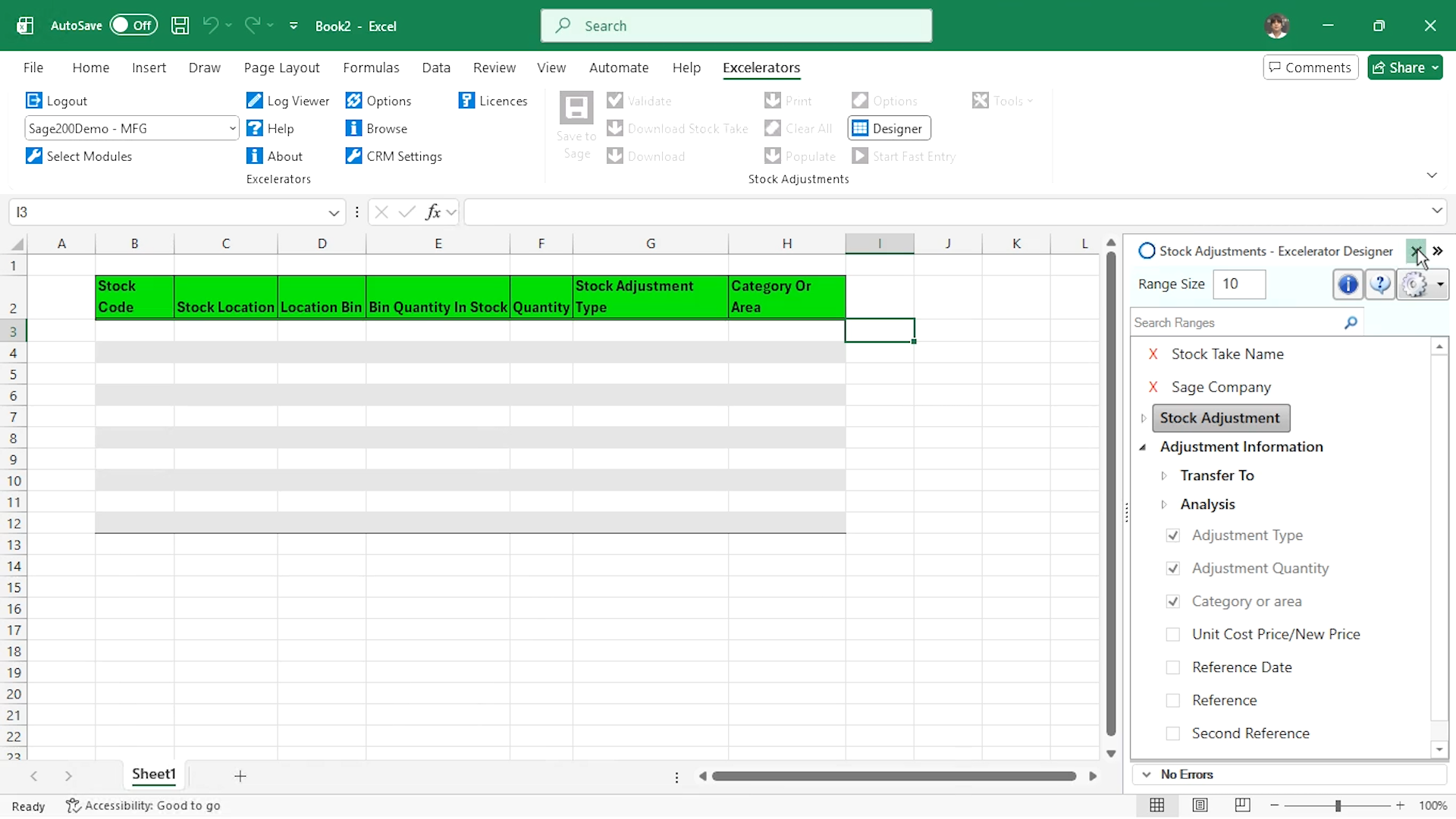
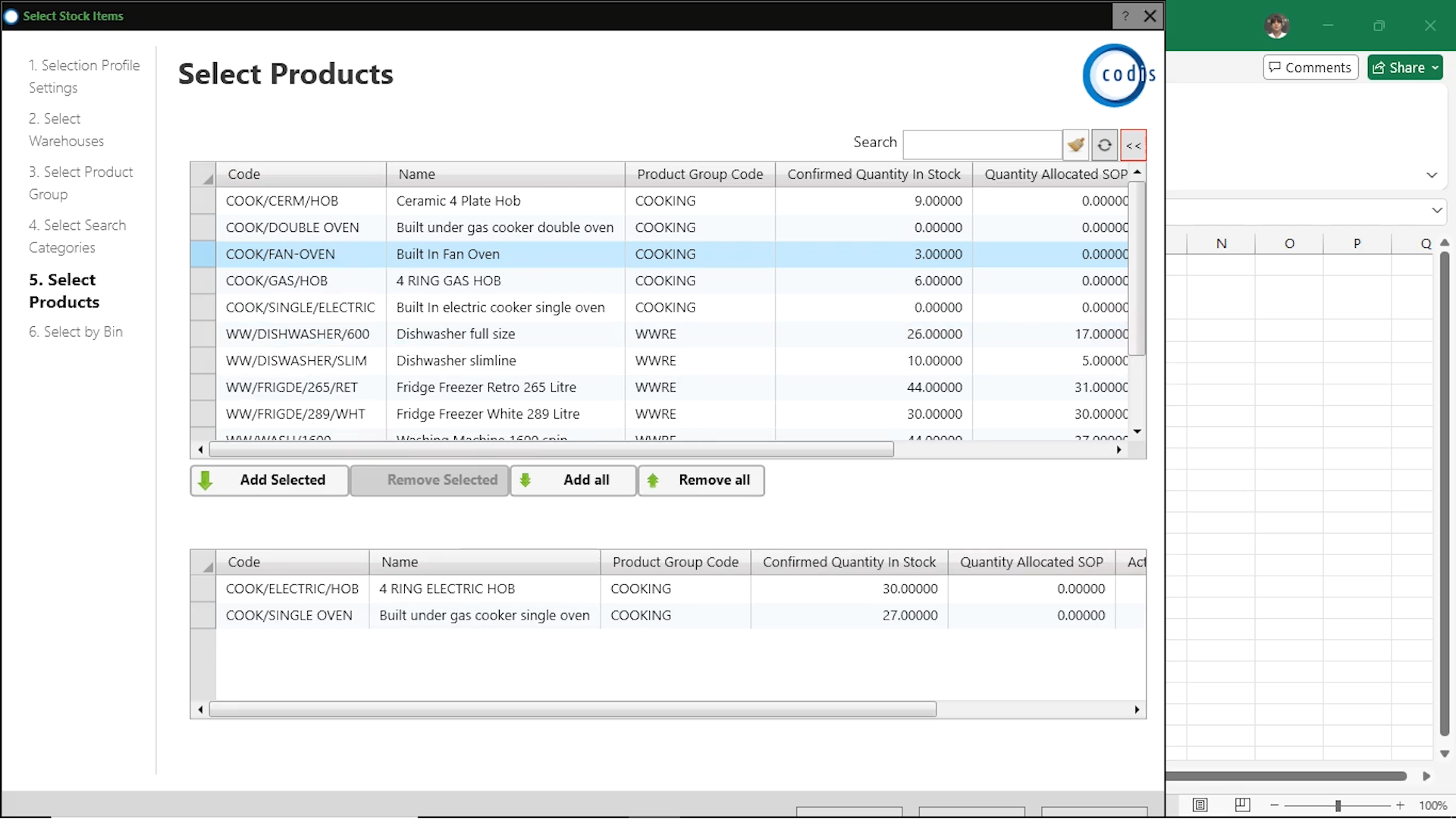
Your custom template is now ready! Click Download to choose your stock items.
Now adjust the quantities in the Quantity column, right click and browse the stock adjustment type, and then choose “Stock Write Off” by browsing on the Category or Area column.
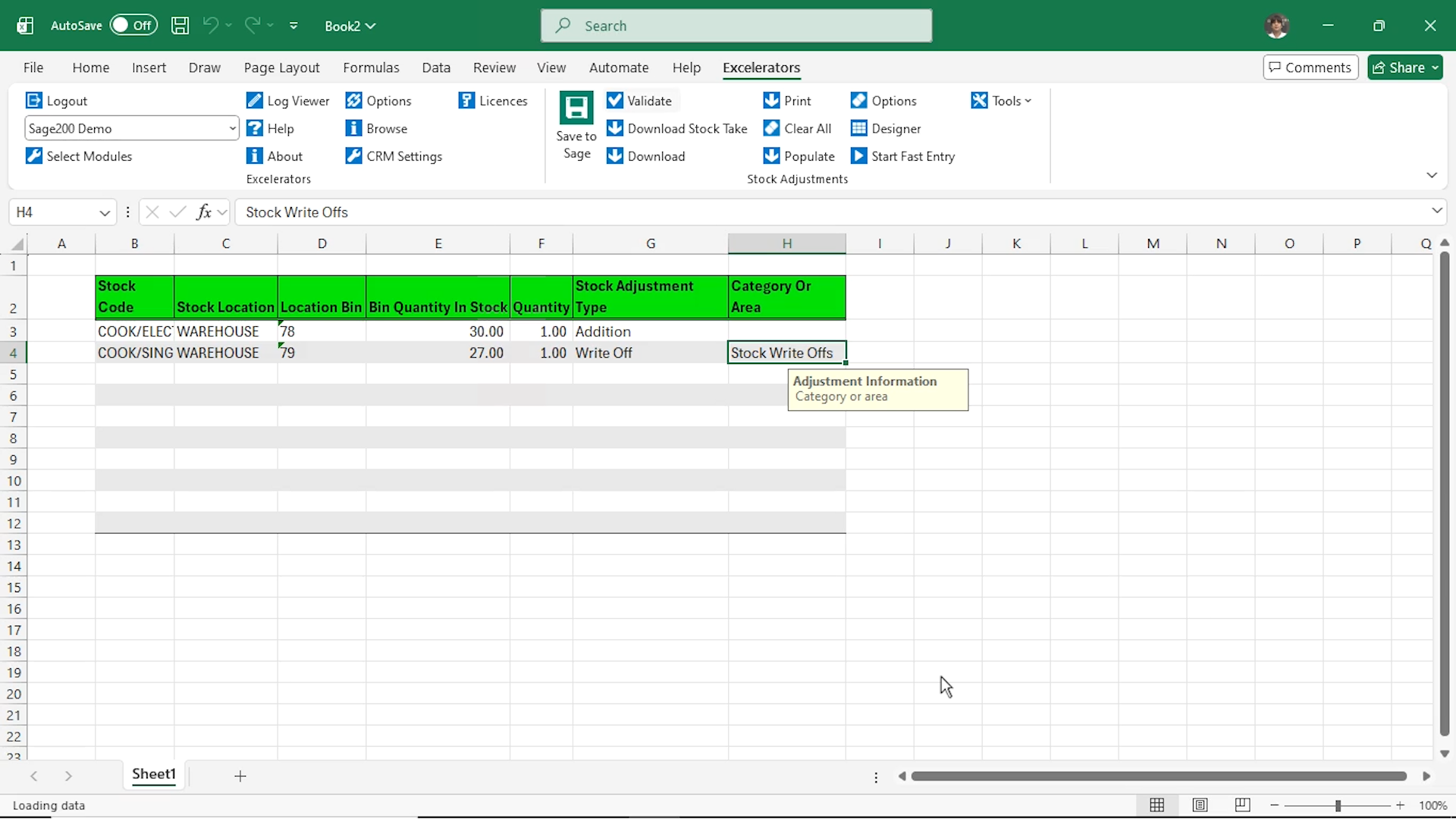
Finally click validate and save to Sage!
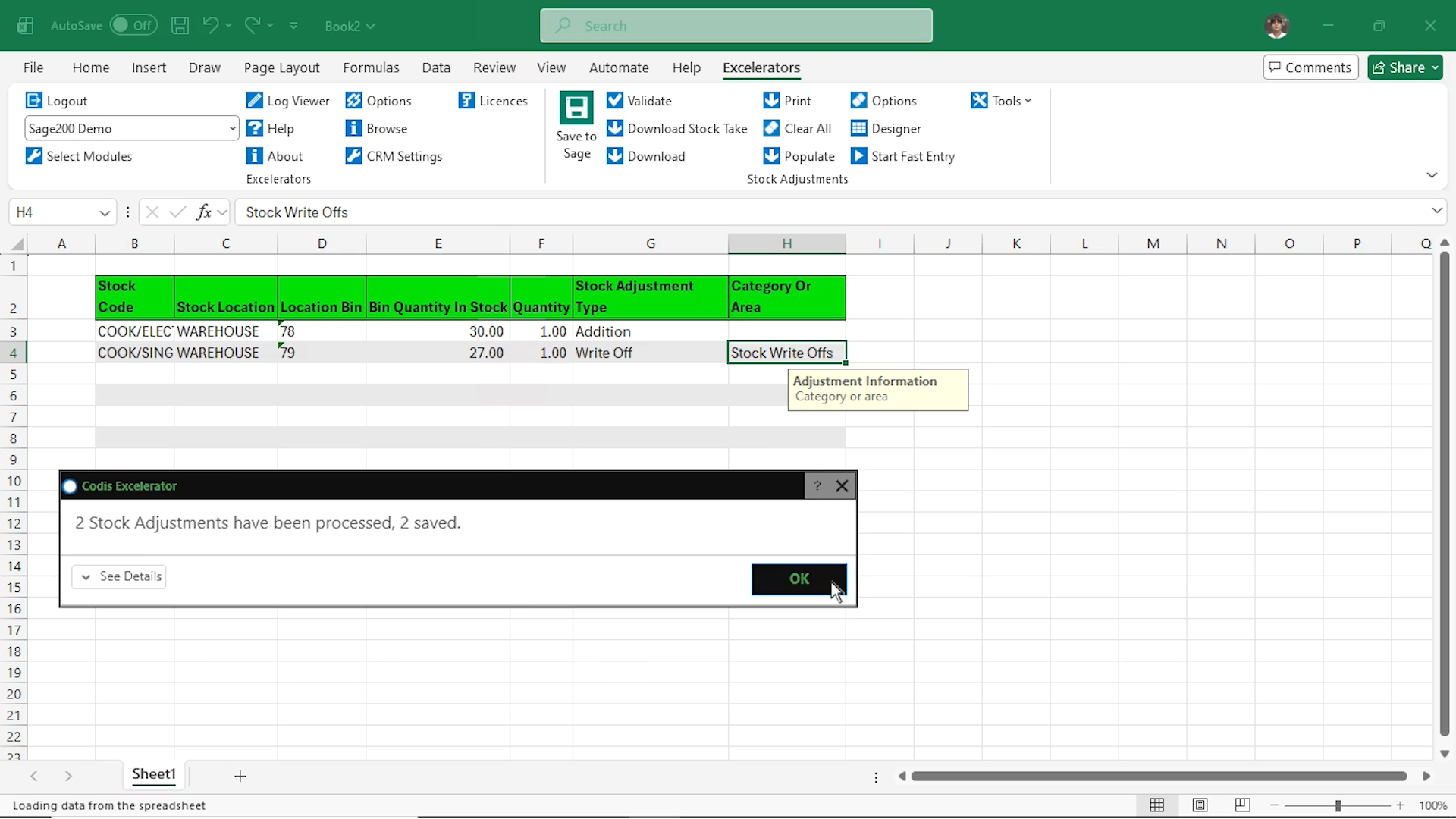
We designed a custom Excel template to make stock adjustments in Sage 200, without ever leaving our spreadsheet!
Where to go from here.
Choose Codis for your Sage 200 support for preferable pricing on Excelerator and our other award-winning add-ons
Report on stock, sales, nominal transactions and much more all from your web browser using Intellerator, built on Power BI
Check out our Nominal Reconciliation Excelerator modules